
Install
Install Nesgate
It takes about two minutes and no special permissions. Everything is checked on your own computer, and Nesgate never sees what you type.
- Works in Chrome, Microsoft Edge and Firefox
- Installed from the store, it updates itself
- Direct downloads come with a code to confirm they are genuine
- Protection starts once you sign in
Install from your browser’s store for automatic updates. The verified package below is an alternative for managed or offline installs.
Loading…
SHA-256 fingerprint: compare it after downloading to be sure the file is exactly what we published.
Loading…How do I check it?
Windows: open PowerShell in your Downloads folder:
Get-FileHash .\nesgate.zip -Algorithm SHA256macOS / Linux: open Terminal:
shasum -a 256 ~/Downloads/nesgate.zipThe long code printed must match the fingerprint above, character for character. If it does not, delete the file and download it again.
Install the downloaded file
Installed from the store? You are done. Skip to signing in.
Unzip to a folder you keep
Right-click the downloaded file, then choose Extract All…. Put the folder somewhere permanent, for example
Documents\Nesgate. Chrome runs Nesgate from this folder, so do not delete it.Open the extensions page
Type
chrome://extensionsin the address bar and press Enter. Turn on Developer mode (top right).Load the folder
Click Load unpacked and choose the folder that contains
manifest.json. Nesgate appears in the list.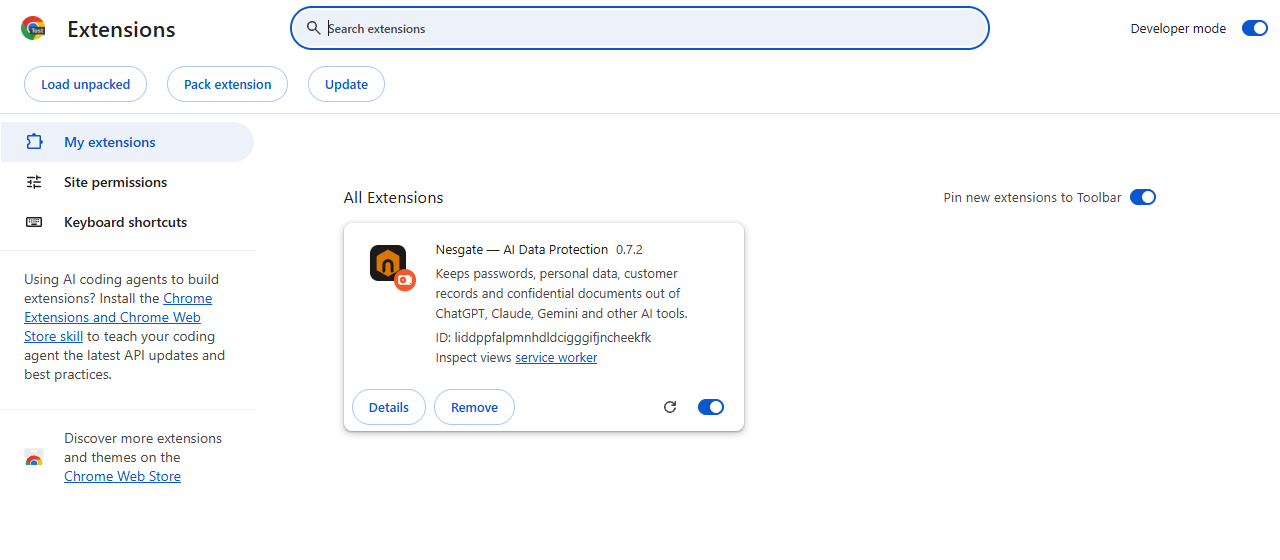
Pin it and sign in
Click the puzzle icon next to the address bar, then pin Nesgate. Click the Nesgate icon, then choose Sign in (or paste the invite link from your company).
Unzip to a folder you keep
Right-click the downloaded file, then choose Extract All…. Put the folder somewhere permanent, for example
Documents\Nesgate. Edge runs Nesgate from this folder, so do not delete it.Open the extensions page
Type
edge://extensionsin the address bar and press Enter. Turn on Developer mode (bottom left).Load the folder
Click Load unpacked and choose the folder that contains
manifest.json. Nesgate appears under From other sources.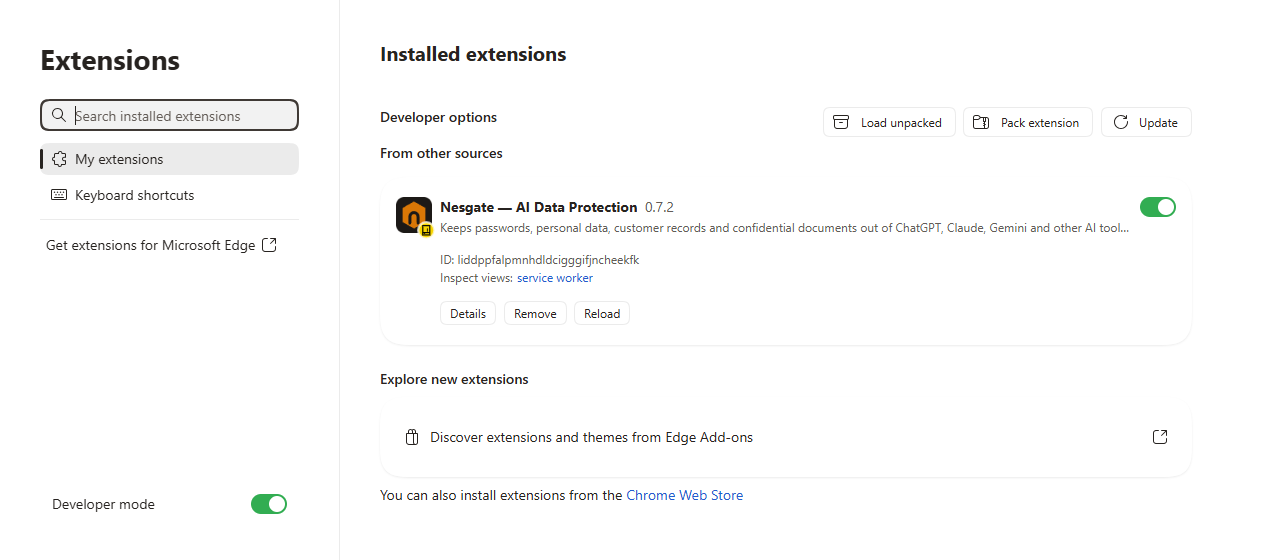
Pin it and sign in
Click the puzzle icon, then use the eye icon next to Nesgate to show it in the toolbar. Click the Nesgate icon, then choose Sign in (or paste the invite link from your company).
Open the debugging page
Type
about:debugging#/runtime/this-firefoxin the address bar and press Enter.Load the file
Click Load Temporary Add-on… and choose the downloaded
.zipfile. No need to unzip.Sign in
Click the Nesgate icon in the toolbar, then choose Sign in.
Good to know
Firefox removes temporary add-ons when it closes, so this route is only for testing. For everyday use, install Nesgate from Firefox Add-ons: it stays installed and updates itself.
Questions
Chrome says “Disable developer mode extensions”: is that a problem?
No. Browsers show that notice for every extension installed from a folder instead of a store. Click the × to dismiss it. It disappears once you install the store version.
What can Nesgate see?
Nesgate runs only on AI apps (ChatGPT, Claude, Gemini, Copilot, DeepSeek, Perplexity, Grok, Mistral, Meta AI and others) and your company’s approved list. It checks what you type or upload on your device. When it finds something sensitive, your console receives the type of data, the action taken and a masked preview, never the original text or file.
Why does the browser mention “tabs” and my email address?
Tabs lets Nesgate recognise when you open an AI app so it can protect it, or block one your company has not approved. It does not keep your browsing history. Email is read only from a work profile, so your company can see which employee a browser belongs to.
How do I update?
Installed from the store, Nesgate updates itself. Installed from a file: download the new version, replace the files in your Nesgate folder, then click the reload arrow on the Nesgate card in the extensions page. Your settings and sign-in stay.
How do I remove it?
Open the extensions page and click Remove on the Nesgate card, then delete the folder. In an organization, only your admin can disconnect a managed browser.